世界时间时区时差
English
Français
Deutsch
Español
日本語
繁體
简体
Português
Italiano
Русский
分享到:
更多
时间,时区,时差
Area
北美
安圭拉
安提瓜和巴布达
巴哈马
巴巴多斯
伯利兹
百慕大
英属维尔京群岛
加拿大
开曼群岛
哥斯达黎加
古巴
库拉索
多米尼加
多米尼加共和国
萨尔瓦多
格林纳达
瓜德罗普
关岛
危地马拉
洪都拉斯
牙买加
墨西哥
蒙特塞拉特
尼加拉瓜
北马里亚纳群岛
巴拿马
波多黎各
圣基茨和尼维斯
圣卢西亚
圣皮埃尔岛和密克隆
圣文森特和格林纳丁斯
特克斯和凯科斯群岛
美国
美属维尔京群岛
南美洲
阿根廷
阿鲁巴
玻利维亚
巴西
智利
哥伦比亚
厄瓜多尔
福克兰群岛
法属圭亚那
圭亚那
巴拉圭
秘鲁
乌拉圭
VenezuPela
委内瑞拉
欧洲
阿尔巴尼亚
安道尔
亚美尼亚
奥地利
白俄罗斯
比利时
波斯尼亚
保加利亚
克罗地亚
塞浦路斯
捷克
丹麦
爱沙尼亚
法罗群岛
芬兰
法国
德国
直布罗陀
希腊
匈牙利
冰岛
爱尔兰
意大利
科索沃
拉脱维亚
列支敦士登
立陶宛
卢森堡
马其顿共和国
马耳他
摩尔多瓦
摩纳哥
黑山
荷兰
挪威
波兰
葡萄牙
罗马尼亚
俄罗斯
圣马力诺
塞尔维亚
斯洛伐克
斯洛文尼亚
西班牙
瑞典
瑞士
土耳其
英国
乌克兰
梵蒂冈城国
澳大利亚太平洋
美国萨摩亚
澳大利亚
科科斯群岛
库克群岛
斐济
法属波利尼西亚
基里巴斯
马绍尔群岛
密克罗尼西亚
瑙鲁
新西兰
纽埃
诺福克岛
帕劳
巴布亚新几内亚
皮特凯恩群岛
所罗门群岛
汤加
图瓦卢
瓦努阿图
瓦利斯群岛和富图纳群岛
亚洲
阿富汗
阿塞拜疆
巴林
孟加拉国
不丹
文
柬埔寨
中国
加沙地带
格鲁吉亚
香港
印度
印尼
伊朗
伊拉克
以色列
日本
约旦
哈萨克斯坦
科威特
吉尔吉斯斯坦
老挝
黎巴嫩
澳门
马来西亚
蒙古
缅甸
尼泊尔
北韩国
阿曼
巴基斯坦
菲律宾
卡塔尔
沙特阿拉伯
新加坡
韩国
斯里兰卡
叙利亚
台湾
塔吉克斯坦
泰国
东帝汶
土库曼斯坦
阿拉伯联合酋长国
乌兹别克斯坦
越南
西岸
也门
非洲
阿尔及利亚
安哥拉
贝宁
博茨瓦纳
布基纳法索
布隆迪
喀麦隆
佛得角
中非共和国
乍得
科摩罗
刚果
刚果民主共和国
科特迪瓦象牙海岸
吉布提
埃及
赤道几内亚
厄立特里亚
埃塞俄比亚
加蓬
冈比亚
加纳
肯尼亚
莱索托
利比里亚
利比亚
马达加斯加
马拉维
马里
毛里塔尼亚
毛里求斯
马约特岛
摩洛哥
莫桑比克
纳米比亚
尼日尔
尼日利亚
留尼汪岛法语
卢旺达
圣赫勒拿岛
圣多美和普林西比
塞内加尔
塞舌尔
塞拉利昂
索马里
南非
苏丹
斯威士兰
坦桑尼亚
多哥
突尼斯
乌干达
西撒哈拉
赞比亚
津巴布韦
贝尔法斯特 - Belfast 时间,时区,时差
标准时区:
NoUTC/GMToffset
日光节约时间:
1 小时
当前时区:
UTC/GMT1
时区:
BST
安装免费时间插件工具!
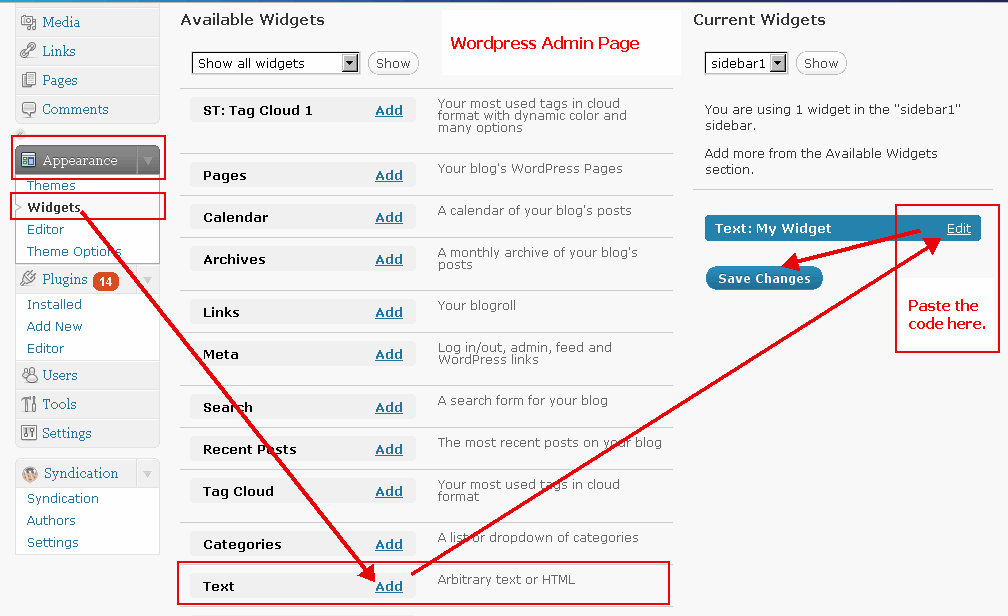
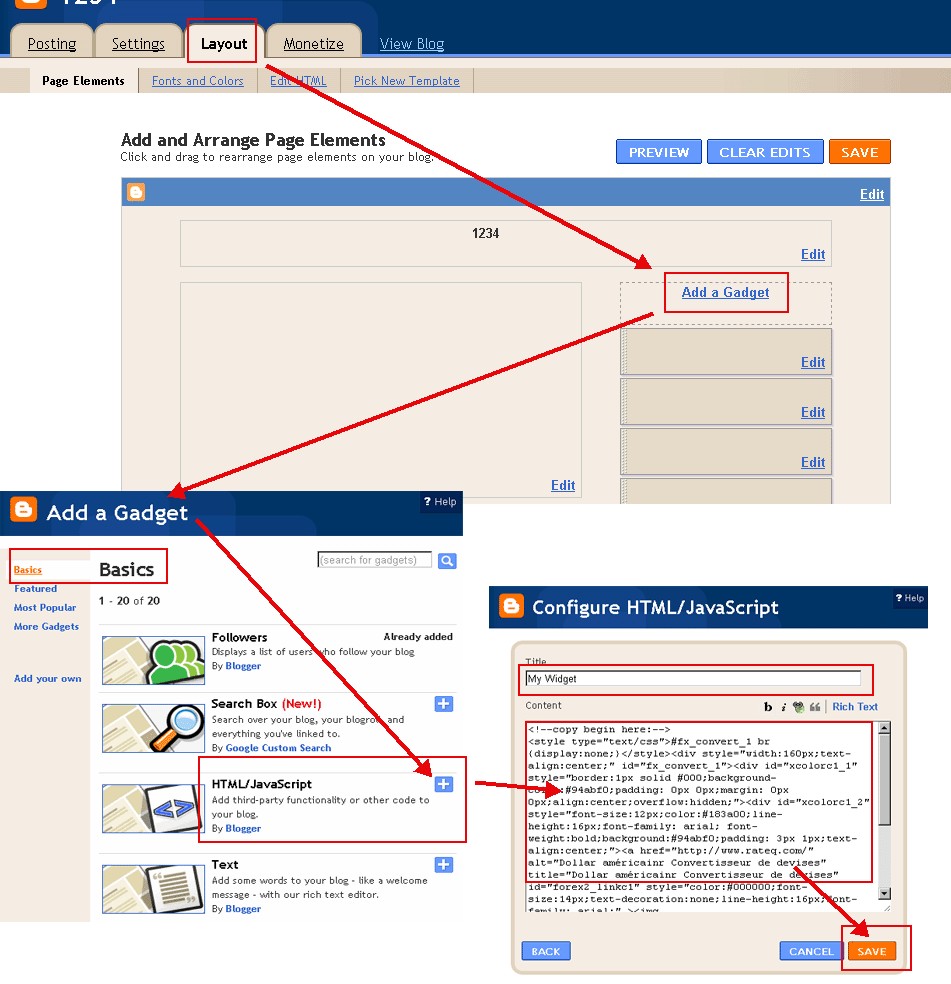
将以下程式码,复制贴上到你的博客或网站中, 就会在你的部落格中显示即时汇率!
(请用HTML模式写入博客内容
WordPress范例
,
Blogger范例
)
选择颜色(
?
):
字体颜色(
?
):
选择日期格式:
5月 21日 2018 10:23:39 AM
21日 5月 2018 10:23:39 AM
5/21/2018 10:23:39 AM
21/5/2018 10:23:39 AM
2018/5/21 10:23:39 AM
2018-5-21 10:23:39 AM
5月 21日 2018 (一) 10:23:39 AM
21日 5月 2018 (一) 10:23:39 AM
5/21/2018 (一) 10:23:39 AM
21/5/2018 (一) 10:23:39 AM
2018/5/21 (一) 10:23:39 AM
2018-5-21 (一) 10:23:39 AM
2018年5月21日 (一) 10:23:39 AM
(一), 5月 21日 2018 10:23:39 AM
(一), 21日 5月 2018 10:23:39 AM
(一) 5月 21日 2018 10:23:39 AM
(一) 21日 5月 2018 10:23:39 AM
贝尔法斯特 时间
复制到剪贴板
<!--copy begin here:--> <style type="text/css">#fx_convert_1 br {display:none;}</style><div style="width:210px;text-align:center;" id="fx_time_1"><div id="xcolorc1_1" style="border:1px solid #000;background-color:#94abf0;padding: 0px 0px;margin: 0px 0px;align:center;overflow:hidden;"><div id="xcolorc1_2" style="font-size:12px;color:#183a00;line-height:16px;font-family: arial; font-weight:bold;background:#94abf0;padding: 3px 1px;text-align:center;"><a href="http://cn.timeq.org/Belfast" alt="贝尔法斯特 - Belfast 时间" title="贝尔法斯特 - Belfast 时间" id="xtime_link1" style="color:#111111;font-size:14px;text-decoration:none;line-height:16px;font-family: arial;" >贝尔法斯特 时间</a></div><div id="clockcnBelfast1" style="color:#111111;font-size: 1em;font-family: arial; font-weight:bold"></div><script src="http://cn.timeq.org/z.php?z=Europe/London&id=clockcnBelfast1&t=1"></script></div></div> <!--copy end here:-->
选择颜色(
?
):
日历月历
<<
>>
日
一
二
三
四
五
六
日历月历|时间
复制到剪贴板
<!--copy begin here:--> <style type="text/css">#mort_cal_1 br {display:none;} #calendar123 td.onToday{color:#ff0000;}</style><div style="width: 160px;text-align:center;"><div style="border:1px solid #000;background-color:#fefefe;color:#333333;padding: 0px 0px;margin: 0px 0px;align:center;text-align:center;overflow:hidden;"><div id="xcolorcs1_1" style="font-size:12px;color:#173a00;line-height:16px;font-family: arial; font-weight:bold;background:#94abf0;padding: 3px 1px;text-align:center;"><a href="http://cn.timeq.org/" alt="日历月历|时间" title="日历月历|时间" id="gooddaycal_link" style="color:#000000;font-size:14px;text-decoration:none;line-height:16px;font-family: arial;" ><img src="http://cn.timeq.org/day.gif" border="0" style="margin:0;padding:0;border:0;" />日历月历</a> </div><DIV style="font-size:16px;"><DIV id=calendar123prev style="float:left;cursor:pointer;padding-left:5px;"><<</DIV><DIV id=calendar123next style="float:right;cursor:pointer;padding-right:5px;">>></DIV><SPAN id=calendar123year></SPAN> <SPAN id=calendar123month></SPAN> <TABLE cellSpacing=0 style="padding-left:12px;"><THEAD><TR><TD><font style='color:red;font-size:14px;'>日</font></TD><TD style='font-color:black;font-size:14px;'>一</TD><TD style='font-color:black;font-size:14px;'>二</TD><TD style='font-color:black;font-size:14px;'>三</TD style='font-color:black;font-size:14px;'><TD>四</TD><TD style='font-color:black;font-size:14px;'>五</TD><TD><font style='color:red;font-size:14px;'>六</font></TD></TR></THEAD><TBODY id=calendar123></TBODY></TABLE><INPUT id=calendar123prevyear type=button value='前年'><INPUT id=calendar123today type=button value='本月'><INPUT id=calendar123nextyear type=button value='明年'></DIV><script type="text/javascript" src="http://cn.timeq.org/z2.php"></script></div><a href="http://cn.timeq.org/" alt="日历月历|时间" title="日历月历|时间" id="gooddaycal_link2" style="font-size:12px;text-decoration:none;line-height:16px;font-family: arial;align:center;" >日历月历|时间</a></div> <!--copy end here:-->
贝尔法斯特 - Belfast 相关信息与新闻:
 日历月历
日历月历